In this video you will learn to insert hyperlinks in your post and to insert video in your post.
Tuesday, 28 April 2020

Blogger Tutorial Part II: Add Content to Blogger
Tutorial Part II: Add Content to Blogger
In this tutorial you will learn
- How to create a post
- How to add images to your post
- How to manage the images
In this tutorial you will learn
- How to create a post
- How to add images to your post
- How to manage the images
Blogger Tutorial Part I: Create Your Blog
Blogger is a free blogging platform offered by Google. Anyone with a Gmail id can create a blog on Blogger completely free. Blogger provides blogs as a subdomain under blogspot.com.
Creating a blog on Blogger is very easy and no technical skills are required to get your blog working within a few minutes. First you should have a Google account to create a blog.
Creating a blog on Blogger is very easy and no technical skills are required to get your blog working within a few minutes. First you should have a Google account to create a blog.
Thursday, 23 April 2020
Blogger Features and Limitations
Blogger is a free blogging platform by Google and the free blogs are hosted as a subdomain of blogspot.com. It is completely free and can be used to create a simple blog without any technical knowledge. Anyone with a Google account can create a blog on Blogger without making any payment.
Q. How many blogs can I have on Blogger?
Ans: You can creates up to 100 blogs on Blogger using a Google account. I think that will be more than enough!
Q. How to create multiple blogs using a Google Account?
To create more blogs, follow the steps below
Login to your Blogger account.
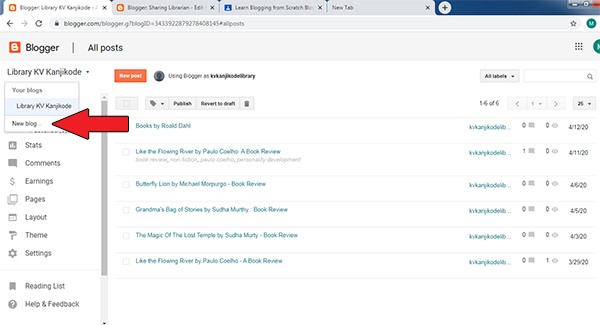
In the Blogger Dashboard click on the title of your blog on the top-left side. In the drop-down click on New Blog... link to create a new blog.
Now provide the title and address for your blog as you have done for your first blog to create the blog.Q. How many blogs can I have on Blogger?
Ans: You can creates up to 100 blogs on Blogger using a Google account. I think that will be more than enough!
Q. How to create multiple blogs using a Google Account?
To create more blogs, follow the steps below
Login to your Blogger account.
In the Blogger Dashboard click on the title of your blog on the top-left side. In the drop-down click on New Blog... link to create a new blog.

Q. How many collaborators can be added to a blog?
Ans: You can have up to 100 collaborators or authors to your blog.
Q. What is the maximum number of posts I can have on my blog?
Ans: There is no limit for number of posts or pages you can have on your blog. Blogger provide an image storage limit of 1 GB. Uploaded photos or videos will count towards your storage limit if:
If either the height or width of your photo exceeds 2,048 pixels.
The video is longer than 15 minutes.
There is a limit of 200 characters for labels for an individual blog post
Saturday, 16 February 2019
ReadPDF - Utility to Extract Metadata from PDF Files
 ReadPDF is a freeware utility I have created few years ago to extract metadata from PDF Files.
The utility will extract title, author, keywords,pages, creator and producer and save them to a tab limited text file which can then be opened in MS Excel.
The utility can only extract metadata embedded in PDF file. It cannot OCR and extract text from the files.
Download from here
Thursday, 7 September 2017
How to Embed PDF file on Website or Blog through Google Drive
Google Drive offers the facility to embed your PDF document in any Blogger post or webpage. You need to upload your PDF file to Google Drive and share the document publicly.
The PDF File provides an HTML code to embed the file in your blogger post.
How to Embed the File

That's it.
The PDF File provides an HTML code to embed the file in your blogger post.
How to Embed the File
- Sign in to your Google Drive and upload the file
- Enable file sharing and select Anyone with the link can view option
- Double click the file to open it. File will be opened in preview mode. Click on the More options icon (the three dots icon on the right hand side of Google Drive) and select Open in New Window.
- You can also paste the sharing link in the address bar to open the file in new window.
- Click on File->Share->Get Embed to link to get the code to embed the file (earlier this was under the three dots icon)

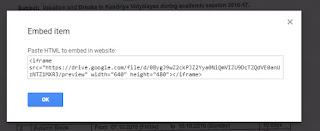
- Click on Embed Item option and a popup window will provide you with the code to embed the file in any webpage or blog post

- Select the HTML code and copy it.
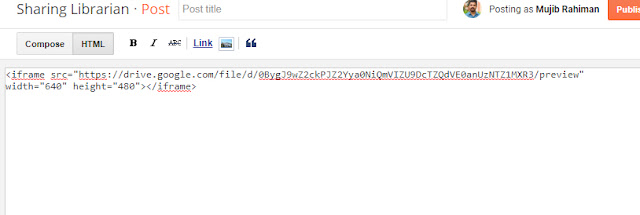
- In the Blogger post window, click on the HTML tab
- Right-click in the Blogger post window and then click "Paste" to paste the HTML code.

- You can change the width and height options
That's it.
Wednesday, 8 February 2017
MS Excel - Change Text from Lowercase to Uppercase using Excel Macro
Recently we had to convert all text in an excel file containing a list of books to uppercase. Here is an Excel macro to get this work done quickly.
Copy the code given below
Sub AllTextToUpper()
Dim myRng As Range
Dim celRng As Range
On Error Resume Next
Set myRng= Cells.SpecialCells(xlCellTypeConstants, 2)
For Each celRng In myRng
celRng.Value = UCase(celRng.Value)
Next celRng
End Sub
Open the Excel file and press Alt+F11 (Hold Alt key and then press F11). This will bring up Miscrosoft VBA editor. Paste the above code as shown in the image below.


Copy the code given below
Sub AllTextToUpper()
Dim myRng As Range
Dim celRng As Range
On Error Resume Next
Set myRng= Cells.SpecialCells(xlCellTypeConstants, 2)
For Each celRng In myRng
celRng.Value = UCase(celRng.Value)
Next celRng
End Sub
Open the Excel file and press Alt+F11 (Hold Alt key and then press F11). This will bring up Miscrosoft VBA editor. Paste the above code as shown in the image below.

- Close VBA Editor and come back to Excel (Or press Alt+F11 again)
- Now Press Alt+F8 (or Click View->Macros->View Macros). The following dialog box will be visible.

- Select AllTextToUpper and then Click Run
- All the text in your excel sheet will be converted to Uppercase
Note: Please save your original Excel sheet before running macros. This action cannot be reversed.
Subscribe to:
Posts (Atom)